
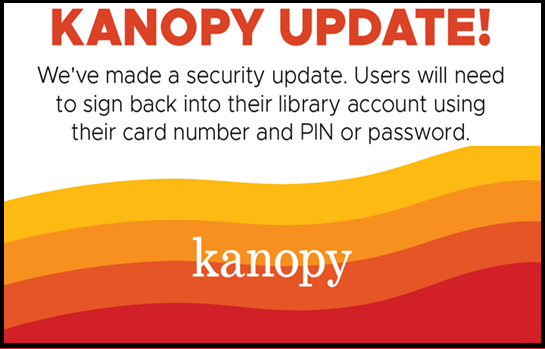
Please see the below scheduled changes/updates to Kanopy authentication processes.
On March 25, 2026, Kanopy will perform backend maintenance across their platform. This maintenance has an important impact on patron authentication in Kanopy.
- Currently patrons authenticate by supplying only their library card number.
- Once maintenance is complete, patrons will need to authenticate with both their library card number and their PIN (the same way as done when logging into Libby).
Once maintenance is complete on March 25, 2026, Kanopy will post a banner on their platform letting patrons know about this change. Patrons will then be able to supply their library card number and PIN if they edit their existing membership in a web browser.
To edit existing memberships, please see the below steps:
On the Kanopy website, you can update your library card number and PIN by selecting Edit on the My Libraries screen.
1. Go to www.kanopy.com and log in to your Kanopy account.
2. Select the menu option button in the top-right corner and go to My Account > My Libraries.
3. Select ••• next to a library, then select Edit.
4. After selecting Edit, you can update your library credentials. You can also check the “Set this library as default” option to set a default library.
5. Select Save to save your changes.
When a patron’s 30-day Kanopy authentication times out, they will need to add their PIN to watch videos on Kanopy if they haven’t already done so. Patrons can reactivate their memberships by following this process:
On the Kanopy website, if libraries are listed under “Action required” on the My Libraries tab of the My Account screen, you need to re-enter your credentials.
1. Go to www.kanopy.com and log in to your Kanopy account.
2. Select the menu button in the top-right corner and go to My Account > My Libraries.
3. Select Re-enter your login information under the library name.
4. For public libraries, enter your library card number (and PIN, if required).
For university libraries, enter your university credentials.
5. Select Save.
In the mobile app, tap More, then My Libraries to see your libraries. If you need to re-enter your credentials for a library, it will say “Verify.”
1. Tap More.
2. Tap My Libraries.
3. Tap the library you want to reactivate.
4. For public libraries, enter your library card number (and PIN, if required).
For university libraries, enter your university credentials.
5. On Android, tap Continue.
On iOS, tap Verify.
If you receive an error, please reach out to North Shore Public Library (631-929-4488 ext 225) for help. Once any account issue is addressed, you’ll be able to reactivate your library using the steps above.
To help make this process easy, here are some extra resources:
- If you have questions about this maintenance or your Kanopy platform, contact Kanopy.
- If patrons need assistance with Kanopy they can contact the Kanopy user support team.