
You can now Print from the Cloud! Ask a librarian for more information on our new wireless printing service next time you are in the Library!
HOW TO PRINT FROM THE CLOUD WHILE AT THE LIBRARY!
1. Email the attachments you want to print to “print@ricohprintcloud.com.” If you want to print the body of the email, forward the email to this same address.
2. After about 60 seconds you will receive a reply to your email. This reply will contain a release code. If you don’t get a reply after about a minute, check your spam folder.
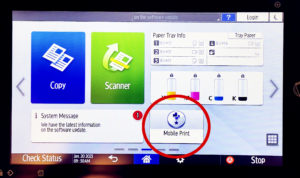
3. At the Ricoh printer, select “Mobile Print” from the home screen.
4. At the next screen, you can select black & white or color.
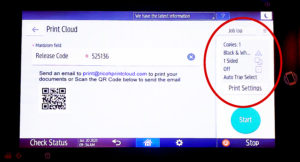
5. Type in the release code from the reply email and press “go,” then press “start” and the file will print.
- In order to print, payment must be added to the coin machine next to the printer. Cost is $0.10 per page for black and white, and $0.25 per page for color.
6. If the document is not printed, it will stay in file for three days and gets purged after that. If the document has been released, the job will get purged within a 24-hour period. Reprints are possible within that 24-hour period.
**NOTE: The print request email can be sent from anywhere, you do not need to be connected to our wifi. The release code is valid for up to three days. This means that you can send the email from home and come into the library the next day to print your files.